
Settlement Tracker Overview
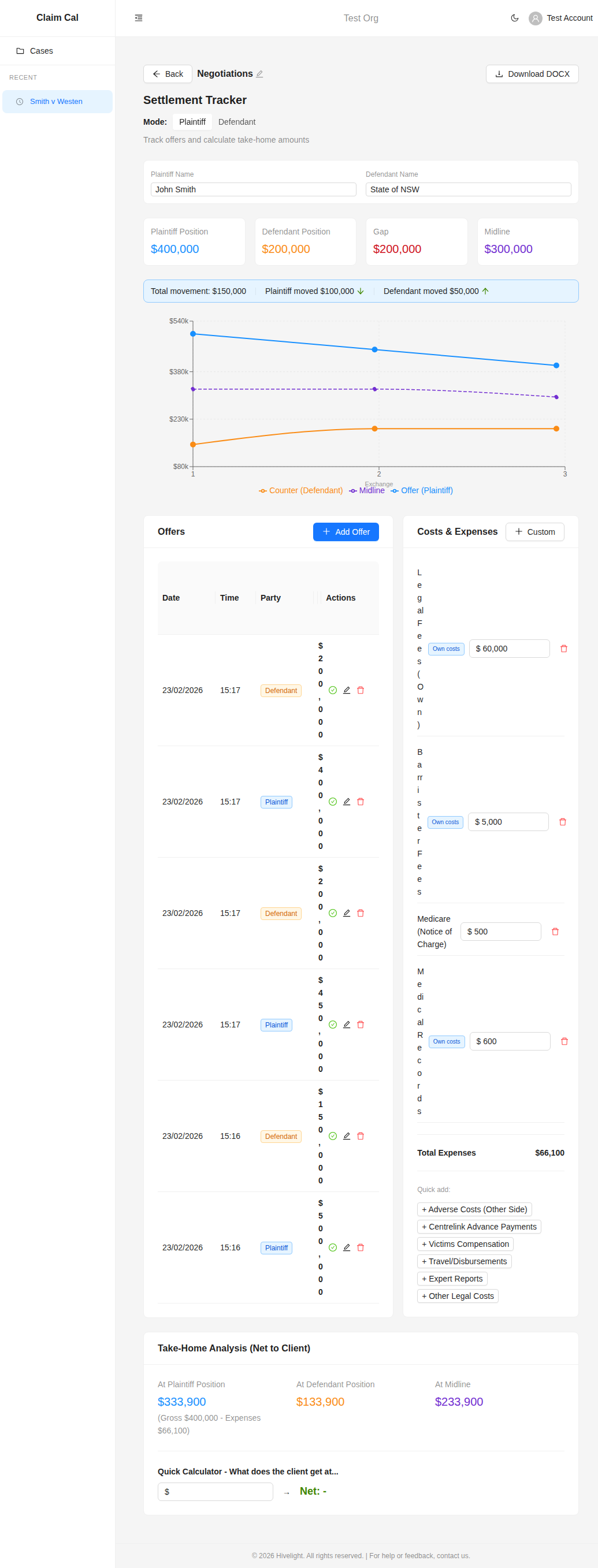
The Settlement Tracker is a live negotiation tool designed for mediations, settlement conferences, and informal negotiations. It helps you record offers from both sides, calculate take-home amounts after legal costs and outlays, and analyse the gap between the parties -- all in real time. The philosophy behind it is simple: the more visual you can make things and the more involved you make the client, the easier the conversations will be.
When to Use It
Use the Settlement Tracker whenever you are negotiating a resolution:
- Formal mediations -- track offers and counter-offers as they happen, advise your client on take-home amounts between sessions
- Settlement conferences -- record proposals from both sides and monitor the closing gap
- Informal negotiations -- keep a structured record of offers exchanged by correspondence or phone
Each case can have multiple settlement sessions, so you can track negotiations as individual sessions or across the entire life of the case.
How the Interface is Structured
The Settlement Tracker is organised into six main sections, all visible on a single scrollable page:
Mode Toggle
At the top of the page, a Plaintiff / Defendant toggle sets the perspective for all calculations. Choose the mode based on which side you are advising. In Plaintiff mode, the tracker calculates net take-home amounts -- what the client actually walks away with after expenses. In Defendant mode, it calculates total settlement cost -- the accepted offer plus the defendant's own costs. The mode also determines which common expense suggestions are shown.
Party Names and Position Cards
Enter the plaintiff and defendant names at the top -- these are important because they appear on the downloaded report. Below, four position cards display the current state of negotiations: Plaintiff Position (their latest offer), Defendant Position (their latest offer), Gap (the difference between positions, helpful for seeing whether you are getting towards the business end of things), and Midline (the settlement value the parties are tracking to if both keep up the current pace). A movement info bar shows total movement and how far each party has moved from their opening position.
Negotiation Chart
A line chart visualises the negotiation progression across exchanges. The plaintiff's offers trend downward, the defendant's offers trend upward, and the midline is plotted between them. The chart fills out as offers go back and forth at each exchange, giving you and your client a clear, visual picture of how the negotiation is converging -- making it easy to see trends and patterns at a glance.
Offers Table
A table listing every offer recorded, showing the date, time, party, amount, and any notes. Each offer has action buttons to accept it (green tick), edit it, or delete it. Click Add Offer to record a new offer.
Costs and Expenses
Track all costs and outlays that reduce the client's take-home (or increase the defendant's total exposure). It is best to add these first, before recording any offers, so that take-home figures are accurate from the outset. Quick-add buttons let you add common items like legal fees, barrister fees, and Medicare Notice of Charge with one click. You can also add custom expenses for anything not in the suggested list.
Take-Home Analysis
Shows the net-to-client (or total cost in Defendant mode) at three reference points: the plaintiff's position, the defendant's position, and the midline. A Quick Calculator lets you enter any amount to instantly see the net result after expenses -- for example, "say if it gets to $200,000, what's it going to be?"
Video Walkthrough
Watch Ashley walk through a full negotiation session, from creating the session and entering expenses through to recording offers, reading the chart, and downloading the report:
Getting Started
To create a settlement session:
- Open any case from your dashboard
- Click the Settlement Tracker tab
- Click New Session and enter a name (e.g., "Smith v Jones -- Mediation 15 March")
- You are taken directly into the tracker, ready to start recording offers
All changes are saved automatically. You can return to the session at any time from the case detail page.
Next Steps
- Using the Tracker in a Negotiation -- step-by-step walkthrough of a live negotiation
- Offers, Take-Home, and Gap Analysis -- detailed guide to offers, expenses, and financial analysis
- Exporting and Sharing -- export your session as a Word document