
Managing Your Account
Your account settings let you update your name and change your password. You can access them at any time from the user menu in the top-right corner of the application.
Accessing Your Account Settings
Click your avatar (or name) in the top-right corner of the header to open the user menu.
Select User Settings from the dropdown.
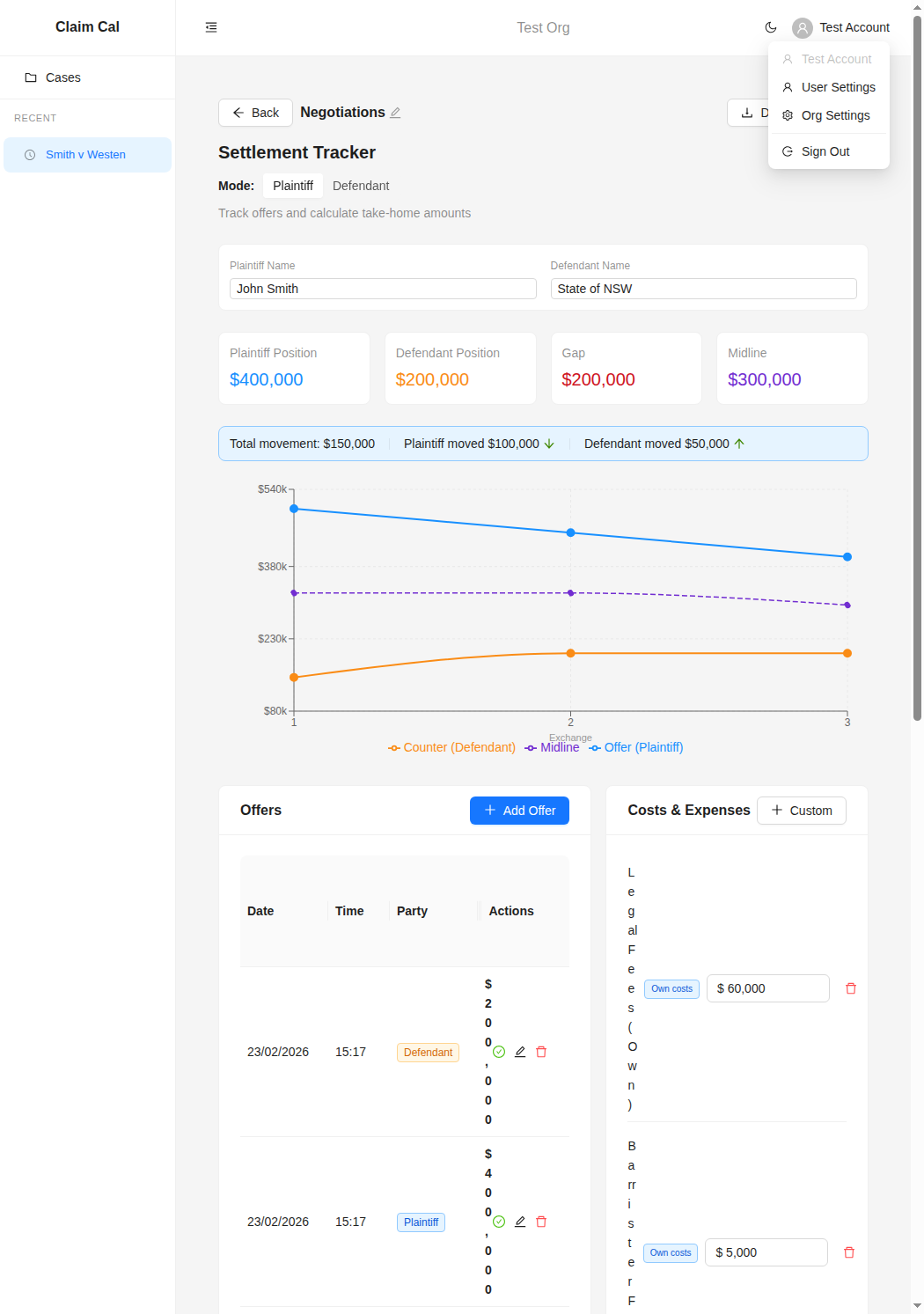
This takes you to the User Settings page, which has two sections: Profile and Change Password.
Updating Your Profile
The Profile section displays your email address and full name.
- Email -- your login email is shown for reference but cannot be changed from this screen. Your email is the address you used when you created your account.
- Full Name -- you can update the name displayed throughout the application and visible to other members of your organisation. Edit the field and click Save to apply the change.
ℹ️ Note
Your name appears in the user menu, in the members list on the Org Settings page, and anywhere your activity is shown to other team members.
⚠️ Warning
Your email address is set when you create your account and cannot be changed from the app. If you need to update your email address, please contact support.
Changing Your Password
To update your password:
Scroll down to the Change Password section on the User Settings page.
Enter your new password in the first field. Passwords must be at least 8 characters long.
Re-enter the same password in the Confirm Password field.
Click Update Password to save.
You will see a confirmation message once the password has been updated. You do not need to re-enter your current password.
💡 Tip
Choose a strong password that you do not use for other services. A mix of upper and lower case letters, numbers, and symbols is recommended.
Forgotten Your Password
If you have forgotten your password and cannot sign in, use the Forgot password? link on the login page. Enter your email address and you will receive a reset link by email. Click the link to set a new password.
The reset link expires after a short period, so use it promptly. If you do not see the email, check your spam or junk folder.
Signing Out
To sign out of Claim Cal, click your avatar in the top-right corner and select Sign Out from the dropdown menu. You will be returned to the login page.
Next Steps
- Managing Your Organisation -- update your organisation name and view organisation details
- Inviting and Managing Team Members -- add colleagues and manage roles