
Inviting and Managing Team Members
Claim Cal lets you invite colleagues to your organisation so your team can collaborate on cases. You can assign roles, change permissions, and revoke access at any time.
Accessing the Members Tab
Click your avatar in the top-right corner and select Org Settings.
Click the Members tab.
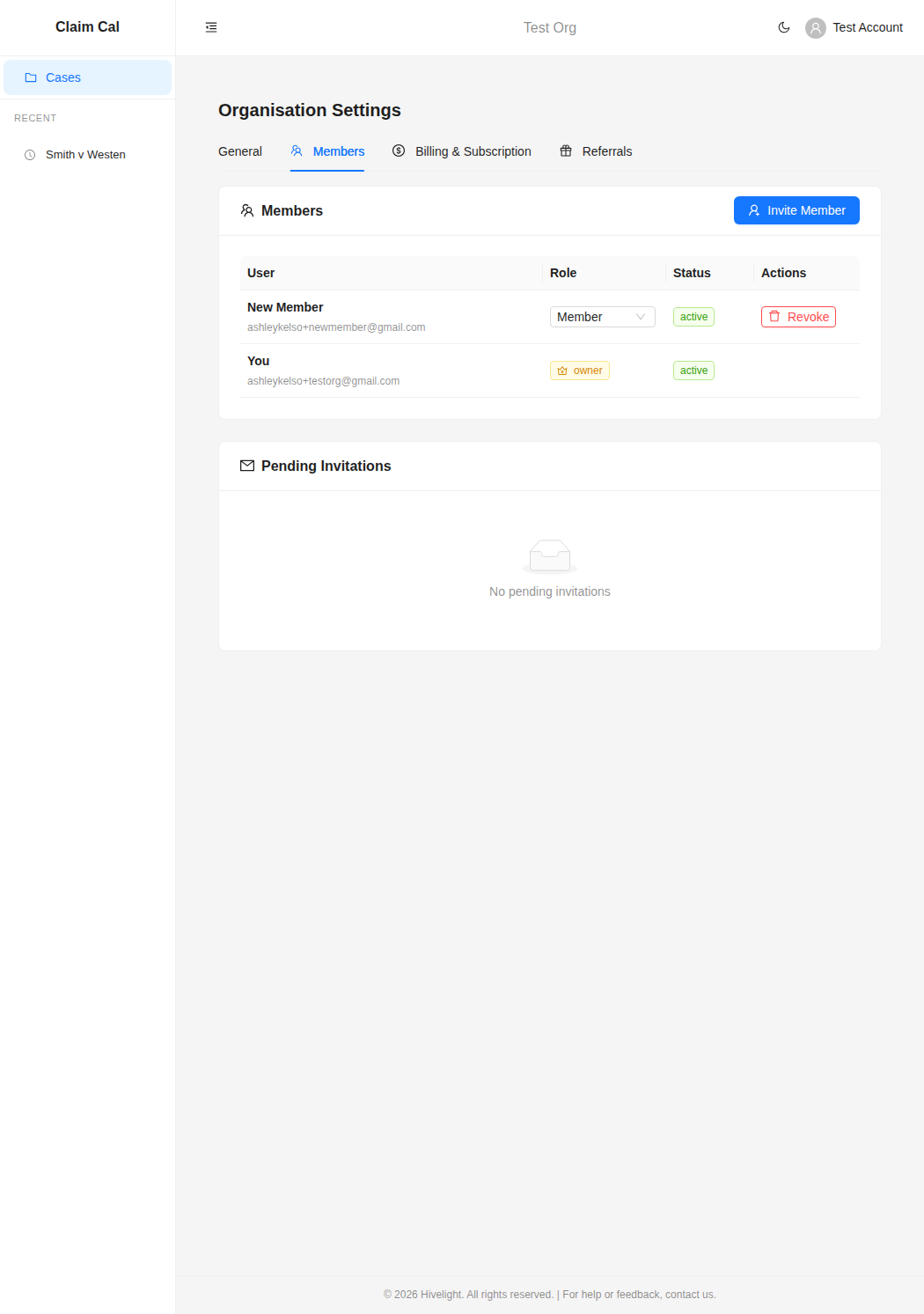
The Members tab has two sections:
- Members -- a table of everyone currently in your organisation, showing their name, email, role, and status.
- Pending Invitations -- invitations that have been sent but not yet accepted.
Understanding Roles
Each member has one of three roles:
| Role | Permissions |
|---|---|
| Owner | Full access. Can manage members, billing, and all organisation settings. Cannot be revoked. Shown with a crown icon. |
| Admin | Can manage members (invite, change roles, revoke access) and manage billing. Can view and edit all cases. |
| Member | Can view and edit all cases within the organisation. Cannot manage members or billing. |
The person who created the organisation is automatically the Owner. There is one Owner per organisation.
Inviting a New Member
Only Owners and Admins can send invitations.
On the Members tab, click the Invite Member button in the top-right corner.
Enter the colleague's email address in the invitation form.
Select a role for the new member -- either Member (default) or Admin.
Click Send Invitation.
An invitation email is sent to the address you entered. The invitation also appears in the Pending Invitations section of the Members tab, where you can see how many days remain before it expires.
💡 Tip
If the invitation email does not arrive, you can click Copy Link next to the pending invitation to copy a direct invite URL. Send this link to your colleague via email or messaging.
Managing Pending Invitations
For each pending invitation, you can:
- Resend -- send the invitation email again (useful if the original was missed or went to spam).
- Copy Link -- copy the invitation URL to your clipboard so you can share it manually.
- Cancel -- remove the invitation entirely. The invite link will no longer work.
Invitations expire automatically after a set period. Expired invitations are noted at the bottom of the section but are not shown in the table. You can send a new invitation to the same email address after one expires.
Changing a Member's Role
Only the organisation Owner can change roles.
Find the member in the Members table.
Click the role dropdown next to their name.
Select the new role -- Admin or Member.
The change takes effect immediately. The Owner role cannot be assigned or removed through this dropdown.
Revoking Access
Owners and Admins can revoke access for any member (except the Owner).
Find the member in the Members table.
Click the Revoke button in the Actions column.
Confirm the action in the confirmation dialog. The member will immediately lose access to all organisation data.
⚠️ Warning
Revoking a member removes them from your organisation entirely. If you want to add them back later, you will need to send a new invitation.
Next Steps
- Managing Your Organisation -- update your organisation name and view details
- How Pricing Works -- understand the per-case pricing model