
Managing Your Organisation
Every Claim Cal account belongs to an organisation. Your organisation was created automatically when you signed up, using the firm name you provided. From the Organisation Settings page you can update your organisation name, manage team members, and handle billing.
Accessing Organisation Settings
Click your avatar (or name) in the top-right corner of the header.
Select Org Settings from the dropdown menu.
This opens the Organisation Settings page, which has three tabs: General, Members, and Billing & Subscription.
The General Tab
The General tab gives you an at-a-glance summary of your organisation.
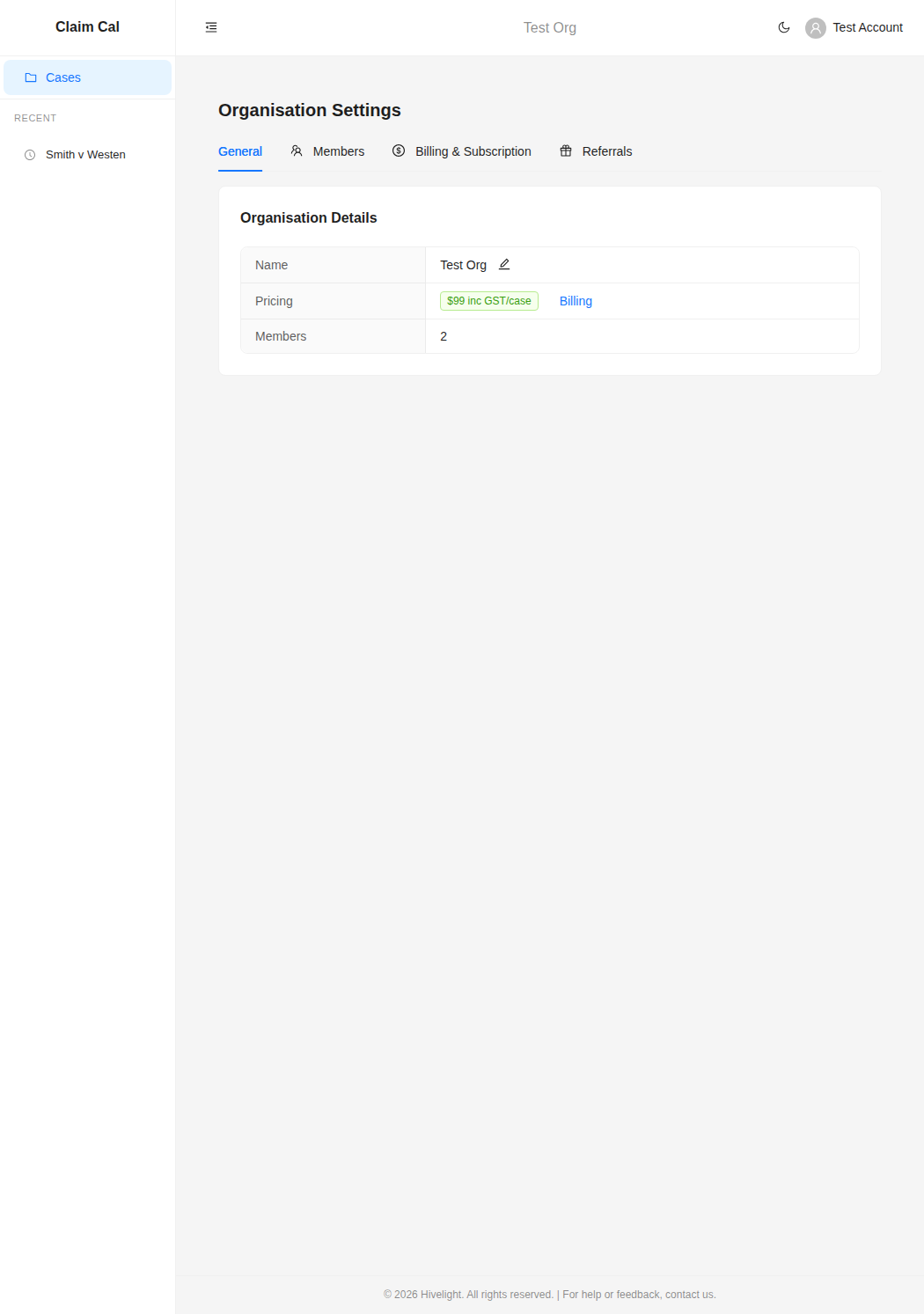
The Organisation Details table shows:
| Field | Description |
|---|---|
| Name | Your organisation name, visible to all members. Admins can edit this by clicking the pencil icon. |
| Pricing | Your current pricing model (e.g., $99 inc GST/case). Click the Billing link to go to the Billing & Subscription tab. |
| Members | The total number of people in your organisation, including yourself. |
Changing Your Organisation Name
Only users with the Owner or Admin role can change the organisation name.
On the General tab, click the pencil icon next to your current organisation name.
Type the new name in the text field that appears.
Click Save to confirm, or Cancel to discard the change.
The updated name takes effect immediately and is visible to all organisation members. It also appears in the header bar of the application.
ℹ️ Note
Your organisation name is for display purposes within Claim Cal. It does not affect your billing or Stripe account details.
Who Can Manage Organisation Settings
Organisation settings are available to all members, but only Owners and Admins can make changes. Regular members can view the General tab but cannot edit the organisation name or access billing management.
For details on roles and permissions, see Inviting and Managing Team Members.
Next Steps
- Inviting and Managing Team Members -- add colleagues and assign roles
- How Pricing Works -- understand the per-case pricing model
- Managing Your Payment Method -- add or update your card details