
Creating and Managing Cases
Cases are the foundation of Claim Cal. Every damages calculation, economic loss analysis, and settlement session is linked to a case. This guide explains how to create cases, fill in the details, and manage your caseload.
Creating a New Case
From the Cases dashboard, click the New Case button in the top-right corner.
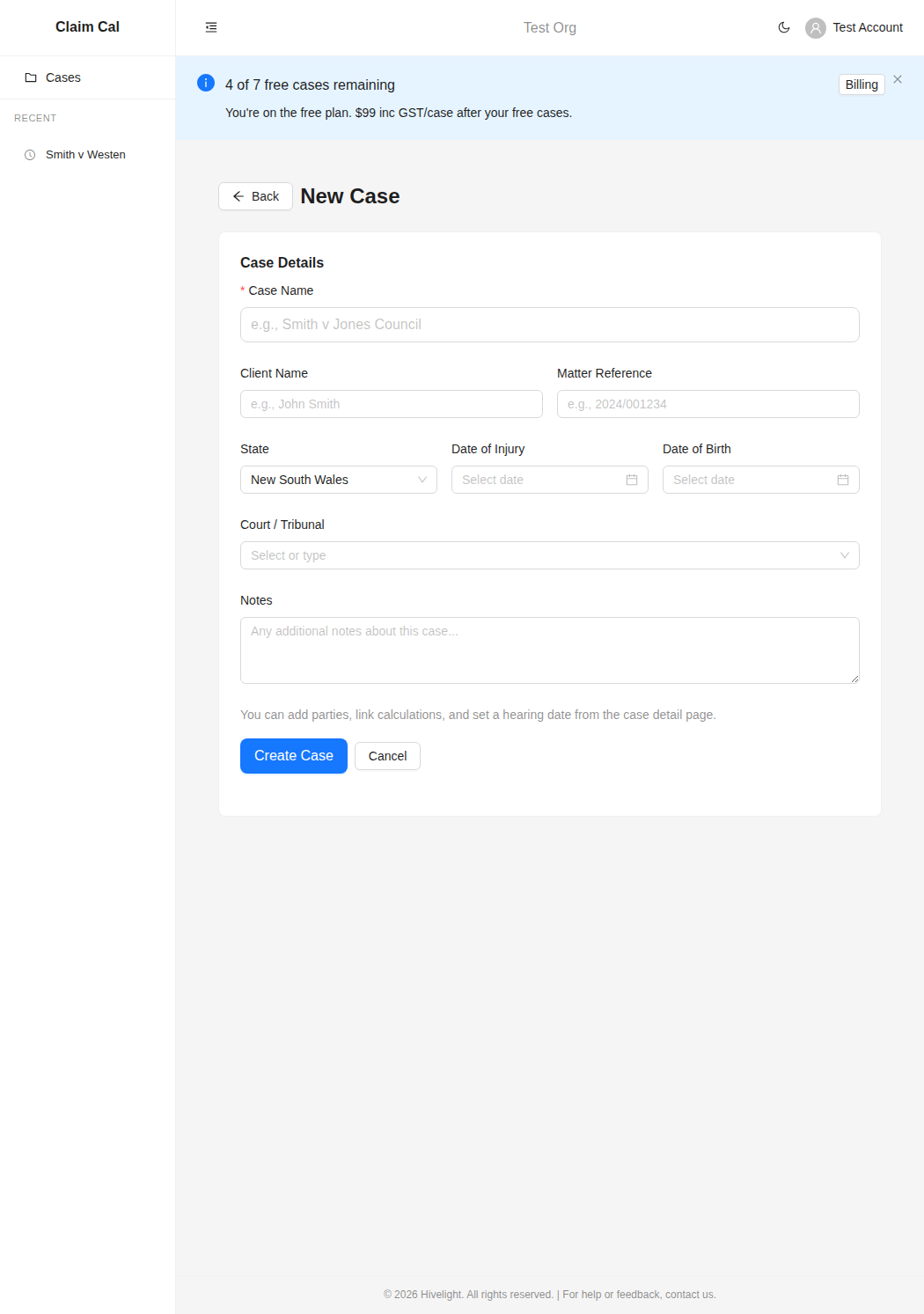
The new case form includes the following fields:
| Field | Required | Description |
|---|---|---|
| Case Name | Yes | A descriptive name for the matter, e.g. "Smith v Jones Council" |
| Client Name | No | The claimant's name |
| Matter Reference | No | Your firm's internal file reference, e.g. "2024/001234" |
| State | No | The Australian state or territory for the claim. Defaults to NSW. Selecting the correct state ensures the right regulatory data is used in calculations |
| Date of Injury | No | The date of the injury or accident (DD/MM/YYYY) |
| Date of Birth | No | The claimant's date of birth (DD/MM/YYYY). Used for life expectancy calculations |
| Court / Tribunal | No | Select from common courts and tribunals, or type to search. Options include District Court, Supreme Court, Workers Compensation Commission, CARS, MAS, Personal Injury Commission, and others |
| Notes | No | Free-text notes about the case |
ℹ️ Note
Only the Case Name is required to create a case. You can fill in the remaining details at any time from the case detail page. However, entering the state and dates upfront saves time when you start using the calculation tools.
Click Create Case to save. You will be taken directly to the case detail page where you can start using the tools.
Case Activation and Pricing
When you create a case, it is activated immediately. Your first 3 cases are free. After that, each new case incurs a one-time $99 inc GST activation fee. If you have a payment method on file, you will see a confirmation dialog before the charge is processed. If you have not yet added a payment method, you will be prompted to do so in Org Settings before continuing.
Managing Your Cases
Searching
Use the search box at the top of the Cases dashboard to find cases by name, client name, or matter reference. The table filters as you type.
Filtering by Status
Every case has one of three statuses:
- Active -- the default. Cases you are currently working on.
- Resolved -- matters that have settled or been finalised. Mark a case as resolved to keep your active list focused.
- Archived -- older matters you want to keep on record but are no longer actively working on.
Use the status filter above the table to switch between Active (shown by default), All, Resolved, Archived, or Starred views.
To change a case's status, open the case and click the Change Status button next to the case name. Select the new status from the dropdown.
Bookmarking Cases
Click the star icon next to any case to bookmark it. Bookmarked cases appear in:
- The Starred filter view on the dashboard
- The Bookmarked section of the sidebar for one-click access
Click the star again to remove the bookmark. You can bookmark cases from both the dashboard table and the case detail page.
Deleting a Case
To delete a case, click the delete button (bin icon) in the case row on the dashboard. You will be asked to confirm before the case is permanently deleted.
⚠️ Warning
Deleting a case is permanent. All linked damages calculations, economic loss analyses, and settlement sessions will also be deleted. This action cannot be undone.
Opening a Case
Click on any case name or row in the dashboard to open the case detail page. From there, you can:
- View and update case information
- Create new calculations and analyses using the three tool tabs
- Open existing calculations to continue working on them
The case will also appear in your Recent list in the sidebar for quick access later.
Next Steps
With your first case created, you are ready to start using the tools:
- Damages Calculator Overview -- build a schedule of damages
- Economic Loss Analyser Overview -- analyse past and future earnings
- Settlement Tracker Overview -- track offers during negotiation