
Creating Your Account
Getting started with Claim Cal takes just a few minutes. You will create an account, confirm your email address, and then you are ready to start working with your first case.
Step 1: Sign Up
Visit app.claimcal.com.au/signup to create your account.
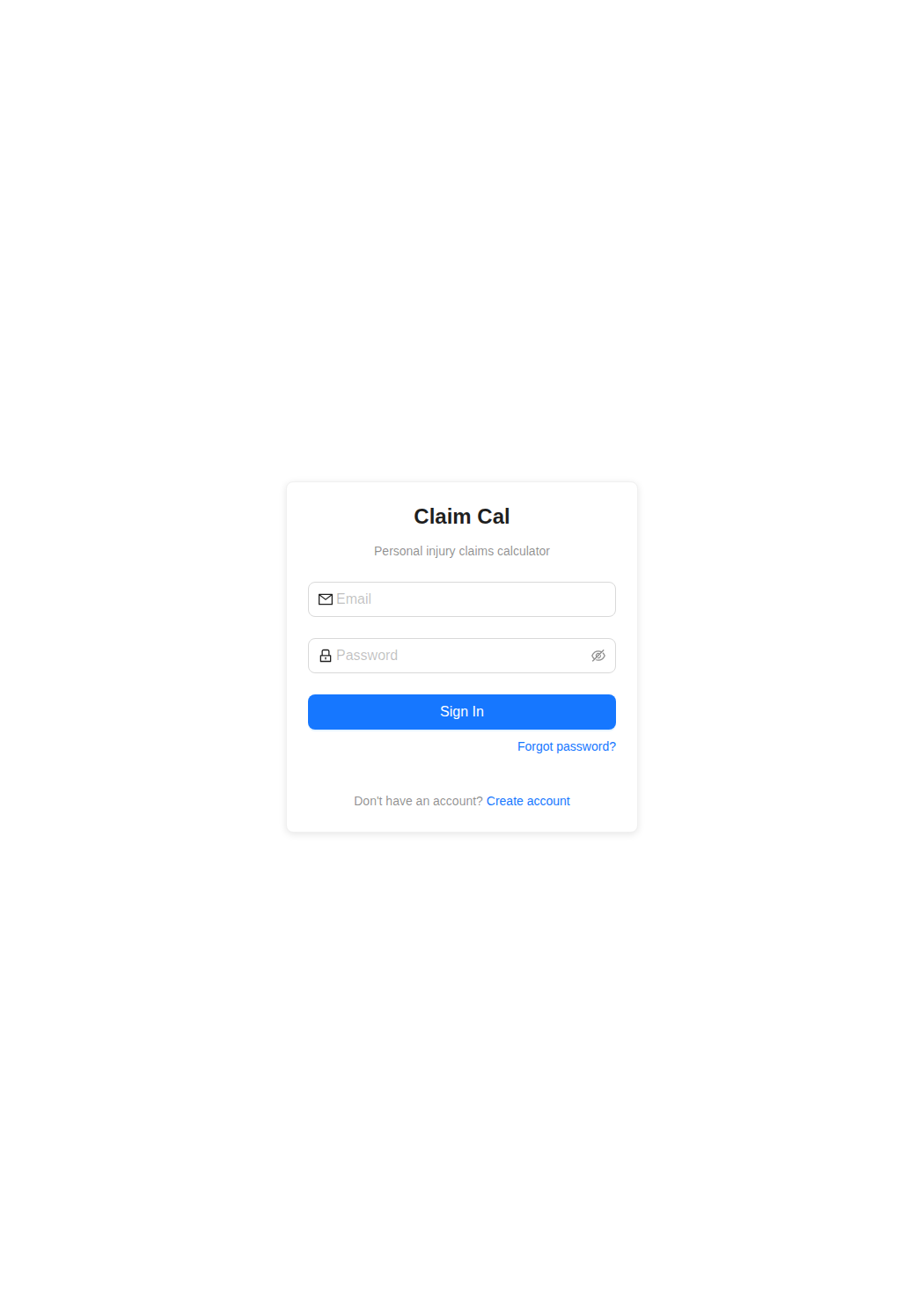
You will need to provide:
Full name -- your name as you would like it displayed in the application.
Firm name -- the name of your law firm or organisation. This becomes your organisation name in Claim Cal, and other team members you invite later will see it.
Email address -- use your work email. This will be your login and where you receive account notifications.
Password -- minimum 8 characters. You will be asked to confirm your password by entering it a second time.
By signing up, you agree to the Terms & Conditions.
Step 2: Confirm Your Email
After submitting the signup form, Claim Cal will send a confirmation email to the address you provided. Check your inbox and click the confirmation link to verify your account.
⚠️ Warning
You must confirm your email before you can sign in. If you do not see the confirmation email, check your spam or junk folder. The email comes from Claim Cal via Resend.
Once confirmed, click Go to Sign In (or navigate to app.claimcal.com.au/login) and enter your email and password.
Step 3: Your First Login
When you sign in for the first time, you will land on the Cases dashboard. Since you are just getting started, the dashboard will show a welcome message with a prompt to create your first case.
Behind the scenes, Claim Cal automatically sets up everything you need when your account is created. There is no manual organisation setup required. Specifically, the system creates:
- Your user profile -- linked to the name and email you provided.
- Your organisation -- named after the firm name you entered during signup. If you did not provide a firm name, it defaults to "[Your Name]'s Organisation".
- Your membership -- you are automatically assigned the Owner role for the new organisation.
- 3 free cases -- included with every new organisation at no cost.
You can change the organisation name later in Org Settings.
💡 Tip
Every new organisation starts with 3 free cases. You can create and fully use three cases across all tools before you need to add a payment method. See How Pricing Works for details.
Forgotten Your Password?
If you forget your password, click Forgot password? on the login page. Enter your email address and you will receive a link to set a new password. The reset link expires after a short time, so use it promptly.
Next Steps
Now that your account is set up, learn how to navigate the dashboard and create your first case: